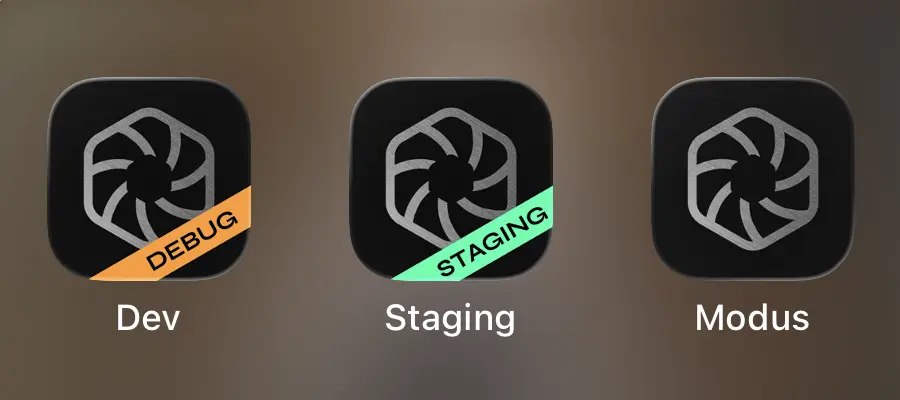
If your iOS app has multiple build configurations — say, Debug and Release — you might also have different bundle IDs for each. And if you're using Firebase, that means different Firebase projects, which means different GoogleService-Info.plist files.
Here's a setup that keeps the right config tied to the right build configuration, automatically.
The core problem
Firebase's SDK discovers its configuration by looking for GoogleService-Info.plist inside the app bundle, by name. So whatever approach you use, you need to get the right file into the bundle under that exact filename at build time.
Step 1: Folder structure and xcconfig files
Create a Config/ directory with one subdirectory per configuration. Each subdirectory holds its own GoogleService-Info.plist and an .xcconfig file:
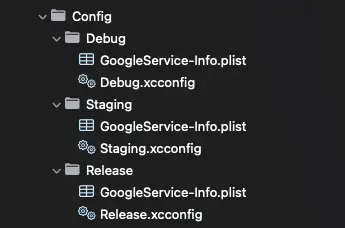
An .xcconfig file is a plain text file that defines build settings as key-value pairs. Xcode merges these into the build environment for whichever configuration the file is attached to — meaning any variable you define becomes available across your build phases, scripts, and targets, just like a built-in Xcode build setting.
Each xcconfig defines one variable pointing to its plist:
Debug.xcconfig
GOOGLE_SERVICE_INFO_PLIST = Config/Debug/GoogleService-Info.plist
Staging.xcconfig
GOOGLE_SERVICE_INFO_PLIST = Config/Staging/GoogleService-Info.plist
Release.xcconfig
GOOGLE_SERVICE_INFO_PLIST = Config/Release/GoogleService-Info.plist
The build script that runs later doesn't need to know which configuration is active. It just reads GOOGLE_SERVICE_INFO_PLIST — the xcconfig has already set it to the right value.
Do not add the plist files to the Copy Bundle Resources build phase. The build script handles copying — if you also add them to Copy Bundle Resources, you'll end up with duplicate resources and unpredictable behavior at runtime.
Step 2: Attach xcconfig files to build configurations
In Xcode, go to Project → Info → Configurations and assign:
Debug.xcconfig→ DebugStaging.xcconfig→ StagingRelease.xcconfig→ Release
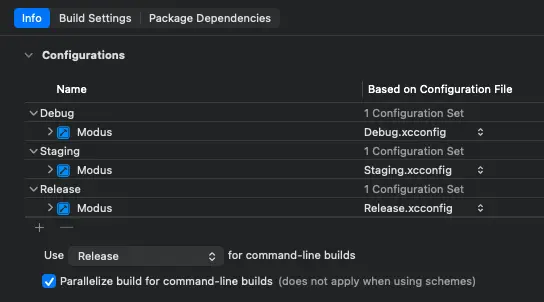
When a configuration has an xcconfig attached, Xcode merges all the key-value pairs from that file into the build environment before the build starts. This is what makes GOOGLE_SERVICE_INFO_PLIST available to the run script in the next step — without the xcconfig attached, the variable simply doesn't exist and the script would fail.
Step 3: Add a Run Script build phase
Add a new Run Script phase and move it to run before Copy Bundle Resources:
PLIST_SOURCE="${PROJECT_DIR}/${TARGET_NAME}/${GOOGLE_SERVICE_INFO_PLIST}"
PLIST_DESTINATION="${BUILT_PRODUCTS_DIR}/${PRODUCT_NAME}.app/GoogleService-Info.plist"

if [ ! -f "$PLIST_SOURCE" ]; then
    echo "error: GoogleService-Info.plist not found at ${PLIST_SOURCE}"
    exit 1
fi

cp "$PLIST_SOURCE" "$PLIST_DESTINATION"
No conditionals. No hardcoded paths. The GOOGLE_SERVICE_INFO_PLIST variable is already set by the xcconfig for the active build configuration — the script just uses it. If the source file is missing, the build fails with a red error pointing to the exact path it looked in.
Also declare the output file in the Output Files field of the run script phase to avoid a build warning and let Xcode skip the script on incremental builds when nothing has changed:
$(BUILT_PRODUCTS_DIR)/$(PRODUCT_NAME).app/GoogleService-Info.plist
Verifying the setup
To confirm the right values are being picked up, add these echo statements before the if condition in the above run script:
echo "Active configuration: ${CONFIGURATION}"
echo "Plist path: ${GOOGLE_SERVICE_INFO_PLIST}"
echo "Full source path: ${PLIST_SOURCE}"
echo "Destination: ${PLIST_DESTINATION}"
These print to the build log — open Report Navigator → latest build → expand the run script phase to see the output. If Debug and Release builds show different plist paths, the setup is working correctly.
The xcconfig files are the source of truth. Adding a new environment is one new file and one new configuration — nothing else changes.

